|
[an error occurred while processing this directive]
|
Help
The CemEditor includes a utility for renaming
batches of files.
Renaming Photos and Files
From the CemEditor 1st Steps Tab click on the
"Rename Pictures" Button.
The following screen will display:
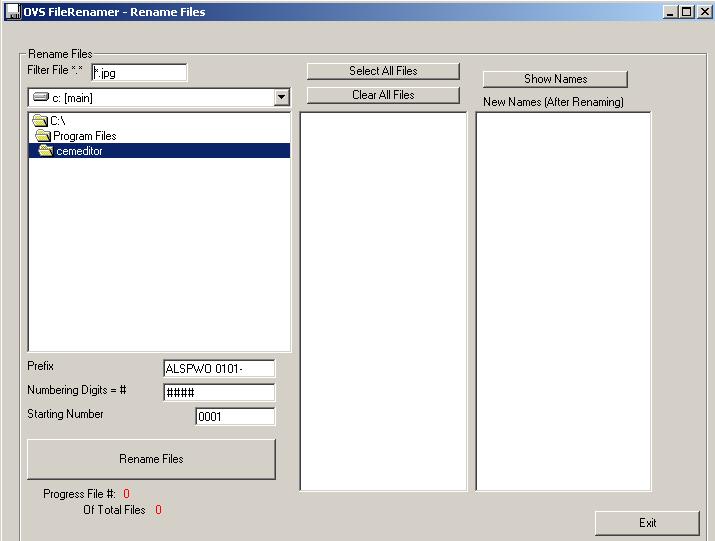
- Select the file filter *.jpg, *.gif, *.bmp,
etc...
- Select the Drive and Folders containing the
files to rename.
- Select some files or all files
- (Optional) Click on "Show Names" to see what
the renamed files will look like.
- Click on "Rename Files" to Rename Files
Tip
We suggest naming files in sequential order so
that the CemEditor Previous and next features work
easily for you.
- Fairmount-0101-0001.jpg
(Represents Cemetery: Fairmount -0101 ; Section
1, Picture Set 1; -0001 Picture 1)
- Fairmount-0101-0002.jpg
(Represents Cemetery: Fairmount -0101 ; Section
1, Picture Set 1; -0002 Picture 2)
- Fairmount-0102-0001.jpg
(Represents Cemetery: Fairmount -0102 ; Section
1, Picture Set 2; -0001 Picture 1)
- Fairmount-0102-0002.jpg
(Represents Cemetery: Fairmount -0102 ; Section
1, Picture Set 2; -0002 Picture 2)
- Fairmount-0201-0001.jpg
(Represents Cemetery: Fairmount -0201 ; Section
2, Picture Set 1; -0001 Picture 1)
- Fairmount-0201-0002.jpg
(Represents Cemetery: Fairmount -0201 ; Section
2, Picture Set 1; -0001 Picture 2)
- Fairmount-0201-0003.jpg
(Represents Cemetery: Fairmount -0201 ; Section
2, Picture Set 1; -0001 Picture 3)
|
|