| [an error occurred while processing this directive] |
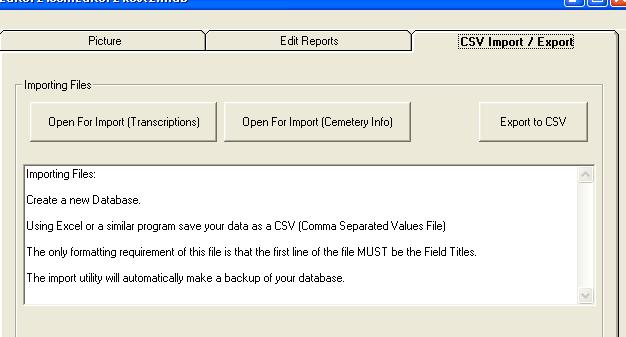
HelpExporting DataThis utility transfers files from the CemEditor to a "CSV" file. CSV means comma separated values. These files are a very common format that many programs can open. Version 2 of the export utility will export both the transcriptions and the cemetery information. Exporting to a CSV FileUsing the CemEditor Program: From the upper right had side of the CemEditor screen, click on the "CSV Import / Export" tab. Press the "Export to CSV" button.
The image below is for the CemEditor Version
2.0.0005 and above. To see screenshot of previous
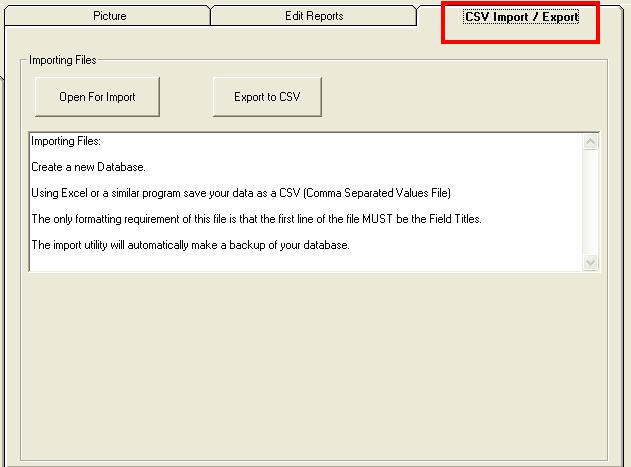
version -
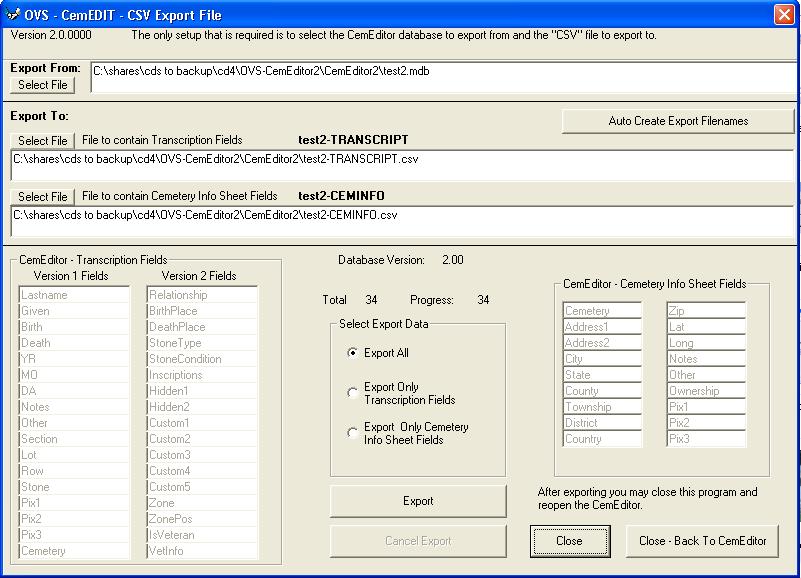
click here. SetupVersions below 2.0.0002 see Version 1 help.
Very few steps are required.
When the utility is finished exporting the files you may open the output file in another program such as Microsoft Excel or a plain text editor. |