| [an error occurred while processing this directive] |
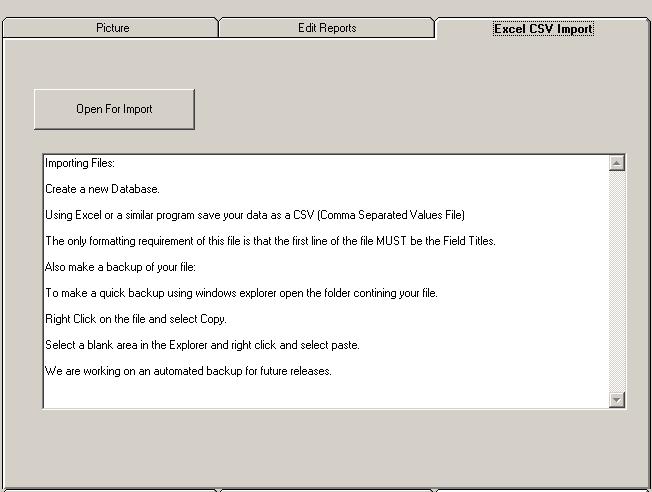
HelpVersion 1: Importing DataCreate a new database and CSV file Importing the CSV FileUsing the CemEditor Program:From the upper right had side of the CemEditor screen, click on the "Excel CSV Import" tab. You will see this:
Using the Import UtilityIf you haveprepared your CSV File already Click on "Open For Import". This screen will display: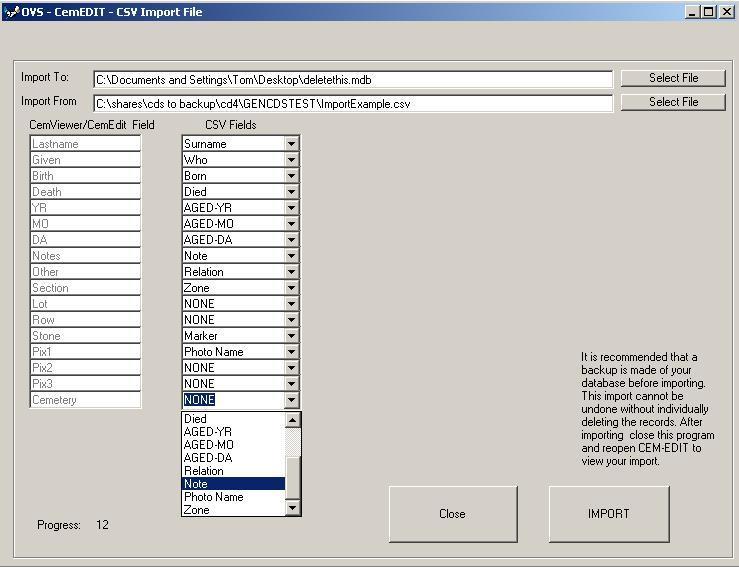
Importing
NotesTake note that after importing into a blank database the very first record of the database will be blank. This is normal and the blank record may be deleted in the CemEditor. All of your data will follow. If you would like to see the data sorted in the CemEditor in the order that it was imported you will need to select the "No Sort" option in the CemEditor |