Help
Importing Data
This utility transfers files from other software
into the CemEditor. It has the ability to import
"csv" files. CSV means comma separated values.
These files are a very common format that many
programs can export or save to or from.
If all the data in a column is not importing
properly for you please see the Frequently
Asked Questions.
Setting up your Excel or CSV File
See the
templates and Excel formulas
If you already have information stored in a
spread sheet file like Microsoft Excel you can
import your information instead of re-entering it.
Data Field Sizes
See Edit and
Add Data for field sizes.
Very little setup is required
- Make a copy of the Excel or other file you
want to import
- Open the copy, not the original file.
- Change the file so the very first row of the
spreadsheet are the titles of the columns.
(The first row must be the titles of the
columns)
-
Add a column for "Cemetery" name and
fill in the Cemetery name in each row. This can
be done easily by typing one and cutting and
pasting to the rest of the rows.
-
Add a column for "Row" if you do not
already have this column and fill it with data.
Recommended: Enter "0" or "1" if you do not
maintain row numbers.
-
Add a column for "Section"if you do not
already have this column and fill it with data.
Recommended: Enter "0" or "1" if you do not
maintain section information
- When you are done editing the spreadsheet:
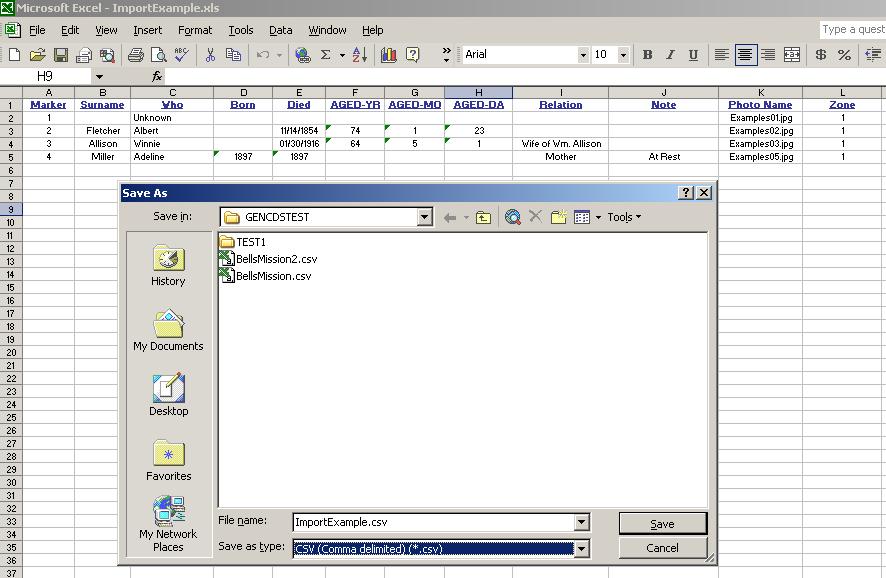
- Click on "File" then "Save As"
- Select CSV as the file type.
- (See the spreadsheet program help for
exact method for your spreadsheet
program)
- (Seethe screen shot below for Excel
method)
- Close the program that you were using to
edit the CSV file.
- You are ready to import.
Importing the CSV File
Using the CemEditor Program:
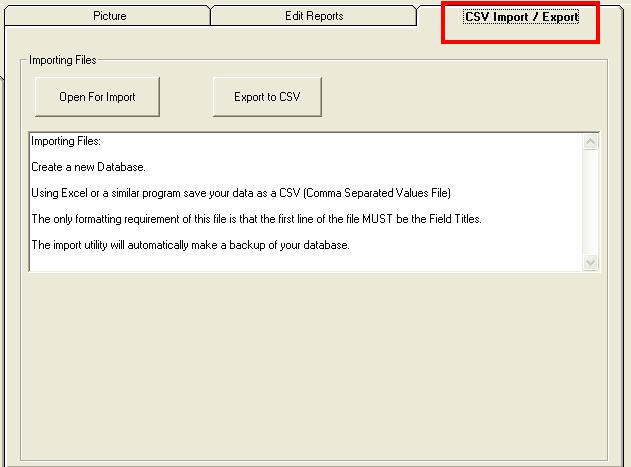
From the upper right had side of the CemEditor
screen, click on the "CSV Import / Export" tab.
Importing Data using version 1
Importing Data using version 2
|