|
|
Help
Print this page for a quick reference while adding or importing data.
Editing & Adding Data
How To
Once a new database has been created or an
existing database opened you may begin entering
or importing your data.
The CemEditor is very easy to use while
entering data. Click on "Add", enter the
information , and then click on "Update"
After Clicking on "ADD" if you click on "Copy
Last" it will copy the last name, picture
fields, and location fields. (A Very Useful
Feature)
The plus "+" buttons next to fields means to
increment them by one number.
The arrows by the pictures move to the previous
picture or the next picture. (Numbered
Pictures)
The Yellow Bar at the bottom of the screen
explains the behavior of each button"
TIP
Using these suggested TAGS will aid research and
make the data entry more consistent. We
suggest using these, or similar, tags in the
"NOTES" , "OTHER" or "CUSTOMxx" fields.
Enter a "?" Question Mark
Enter a "?" when you want to go back and
check the entry later. Enter it in beginning of
the field to make it easier to find this record
later. You can search for the "?" in the
Questions Report or edit screens.
Our advice is to use this "?" tag as question
that may have an answer after the stone has
been looked at again.
EXAMPLE: ? Check this Marker at Cemetery , ?
Need a better picture, ? Check Date, ? Check
Aged, etc...
Enter a "!" Exclamation Point
Enter a "!" when you may want to go back
and check the entry later. Enter it in
beginning of the field to make it easier to
find this record later. You can search for the
"!" in the Comments Report or edit screens.
Our advice is to use this "!" tag as comment on
a question that has been reviewed by you and
cannot be answered.
EXAMPLE: ! Broken Stone, ! Illegible, !
Illegible Date etc...
Enter a "*" Asterisk
Enter a "*" followed by a number or
source information. We will add source reports
later that will query this tag. Enter it in
beginning of the field to make it easier to
find this record later.
Our advice is to use this "*" when you were
unable to transcribe the monument and were able
to find the information elsewhere.
EXAMPLE: *1 Info on Date from 1956 Cemetery
Survey etc...
Enter a "#" Pound Sign
Enter a "#" when there is conflicting
information along with a description. We will
add source reports later that will query this
tag. Enter it in beginning of the field to make
it easier to find this record later.
Our advice is to use this "#" when you find
conflicting information about the burial.
EXAMPLE: # New engraving put on stone, doesn't
match previous information.
Enter "VETERAN: "
Enter "VETERAN: " followed by their
service information. Enter it in beginning of
the field to make it easier to find this record
later. It is not necessary to type the word
Veteran if clicking on the "Veteran" checkbox.
Veterans can be searched for easily using the
custom search box.
Field Sizes
|
Field
|
Size Version 1.5.5 and before
|
Size Version 1.5.6 up to Version 2
|
Size Version 2.0.0 and after
|
Comment
|
|
Last Name
|
30
|
40
|
40
|
Surname and/or Maiden Name
|
|
Given Name
|
30
|
40
|
40
|
Name and (Nickname) Avoid quotes when
importing "NickName" on versions 1.5.5 and 1.5.6. Quotes can be imported without incident on versions 2 and above.
|
|
Birth Date
|
15
|
15
|
15
|
"?" Question Marks Are Acceptable.
11/11/1903 11/??/190? 05 OCT 1878 etc...
|
|
Death Date
|
15
|
15
|
15
|
"?" Question Marks Are Acceptable.
11/11/1903 11/??/190? 05 OCT 1878 etc...
|
|
YR
|
10
|
10
|
10
|
Aged Years -- "?" Question Marks are
acceptable
|
|
MO
|
10
|
10
|
10
|
Aged Months -- "?" Question Marks are
acceptable
|
|
DA
|
10
|
10
|
10
|
Aged Days -- "?" Question Marks are
acceptable
|
|
Relationship
|
N/A
|
N/A
|
50
|
Son Of (s/o), Dau of (d/o), Wife of (w/o),
Child of (c/o), Father, Mother, Children,
etc...
|
|
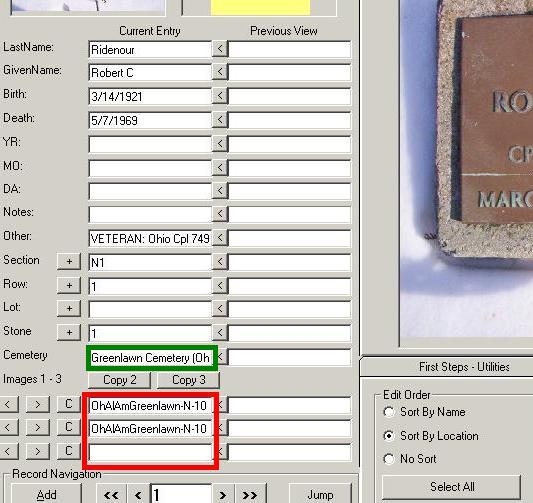
Cemetery
|
100
|
100
|
100
|
Cemetery name and other info.
Double clicking on this field (see partial
screenshot below - outlined in in green)
will open
the cemetery information entry screen.
|
|
Section
|
50
|
50
|
50
|
Section Name or number.
|
|
Row
|
10
|
10
|
10
|
Row Number
|
|
Lot
|
10
|
10
|
10
|
Lot Number or Name
|
|
Stone
|
10
|
10
|
10
|
Stone Number Acceptable(23, 23.01, 23a)
|
|
Notes
|
255
|
255
|
255
|
Comments, Veteran, Info, Relation, etc...
|
|
Other
|
255
|
255
|
255
|
Stone Condition, etc...
|
Image1
Image2
Image3
|
25
|
50
|
50
|
Picture in the ALSPWO folder
(Enter: MyCemPict1.jpg)
Picture in ALSPWO's sub folder named
First
(Enter: First\MyCemPict1.jpg)
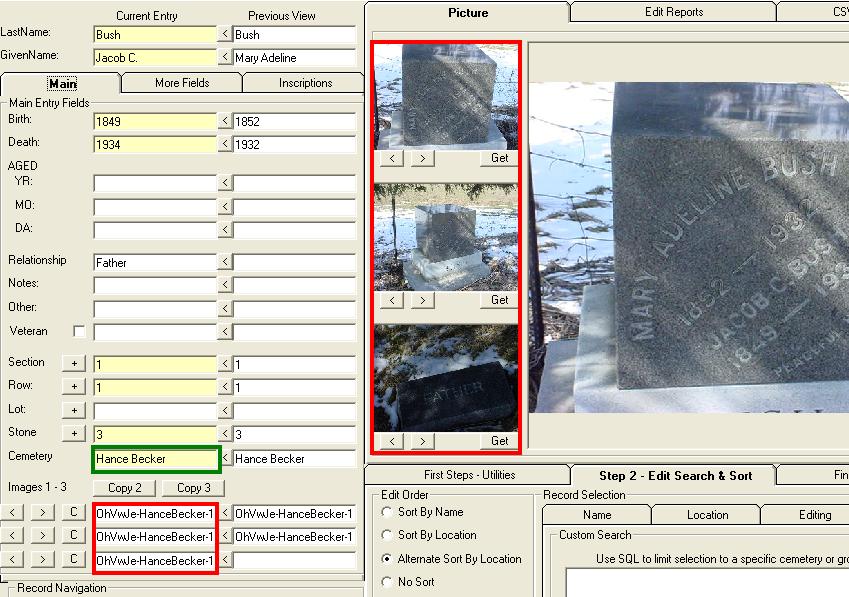
Double clicking on these fields (see
partial screenshot below - outlined in in
red) will open a
dialog box to locate photos, make the
ALSPWO folder, and open Windows explorer.
CemEditor2 also allows photos to be worked with
more visually by right-clicking on the
photo boxes within the editor.
|
|
VETERAN: IsVeteran Checkbox
|
N/A
|
N/A
|
1
|
Place a checkmark in this box if the
individual is a veteran. When importing the
allowed values are "1" = Veteran , "0" or
blank = Not A Veteran
|
|
VETERAN: VetInfo
|
N/A
|
N/A
|
150
|
Enter service information for veterans.
|
|
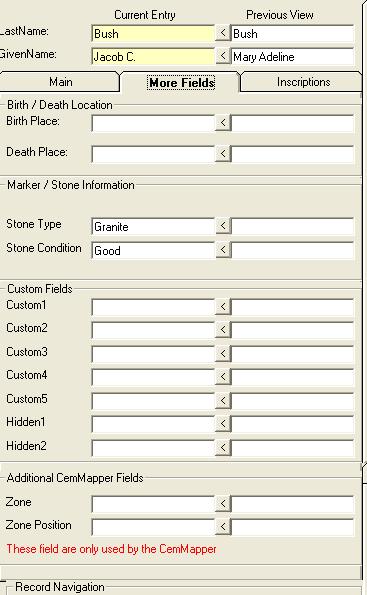
Birth Place
|
N/A
|
N/A
|
75
|
Country, city county, etc...
|
|
Death Place
|
N/A
|
N/A
|
75
|
Country, city county, etc...
|
|
Stone Type
|
N/A
|
N/A
|
50
|
Type and/or shape of stone, (round marble
stone, etc...)
|
|
Stone Condition
|
N/A
|
N/A
|
50
|
Information about the condition of the
stone, weathered, broken, illegible, etc...
|
Custom1
Custom2
Custom3
Custom4
Custom5
|
N/A
|
N/A
|
50
50
100
150
255
|
These fields can be used for information
not located elsewhere. When entering
information give a description first.
(MAIDEN NAME: Smith)
|
Hidden1
Hidden2
|
N/A
|
N/A
|
50
255
|
These fields will not display in the
CemViewer, however information in these
fields can be selected to print when
running reports with the CemToBOOK,
CemToHTM, or CemToPictureBOOK.
|
|
Zone
|
N/A
|
N/A
|
5
|
This field is for use with the CemMapper.
|
|
ZonePos
|
N/A
|
N/A
|
1
|
This field is for use with the CemMapper.
|
|
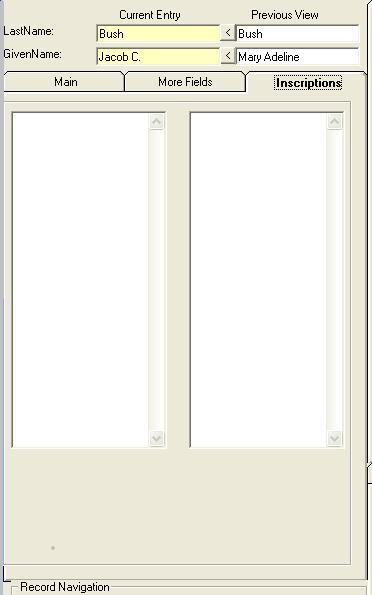
Inscriptions
|
N/A
|
N/A
|
1.2 MegaBytes
|
The inscriptions field can hold a very
large amount of text. Inscription or
obituary information can be entered here.
|
Partial Screenshots
Version2 Screenshots
Version1 Screenshots
|
|