|
|
Help
Picture Folders - ALSPWO Dialog
Selecting Images
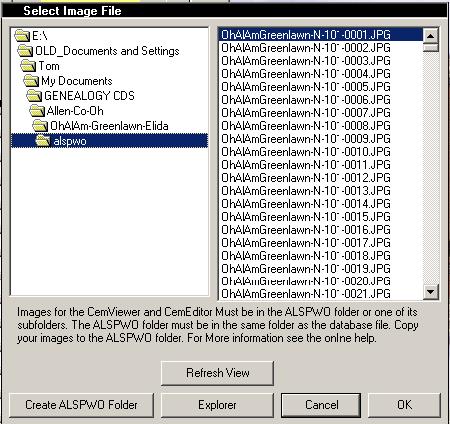
ALSPWO IMAGE Dialog
After double-clicking on an image field in the
CemEditor or using the "Get" button in CemEditor2
the following dialog will appear.
-
The dialog should open to the current
directory of the cemetery you are editing. If
you have not created the ALSPWO folder you
can do this now.
-
The ALSPWO folder can be created by clicking
the the "Create ALSPWO Folder" button.
-
Click on the "EXPLORER" button to open
Windows Explorer.
-
Drag-and-drop or Cut or Copy and Paste
pictures to this folder using the Windows
Explorer.
-
Click on the "Refresh" button in the dialog
to display the picture that have been added
using the Windows Explorer.
Pictures must be in the ALSPWO folder on one of
its subfolders for the CemEditor to use them.
Select a photo by clicking on it using the
dialog above and then click on "OK"
|
|