| [an error occurred while processing this directive] |
CemMapperHelp - Using the SoftwareVersion 2 - Selection & Sorting TABLarger screen shot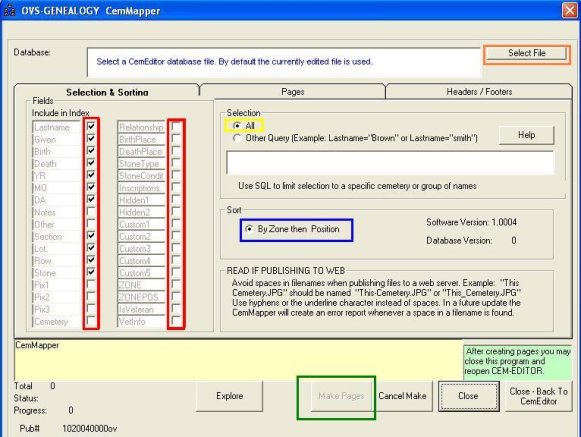
Fields
SelectionSelect ALL to choose every record in the database. (Outlined in yellow) Select OTHER to create pages using other criteria. More help.SortThis option is predefined.Version 2 - Pages TABScreen shot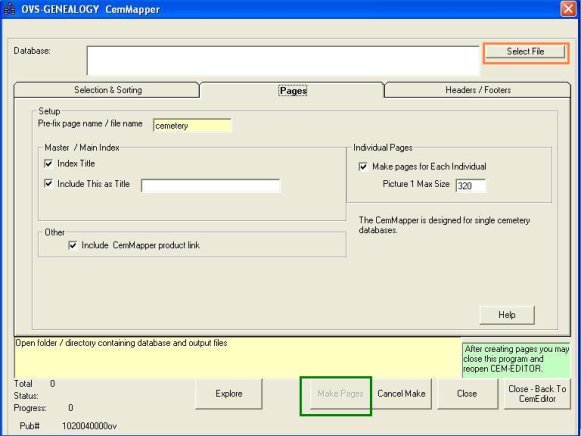
Prefix page name / filename:Enter a prefix for each web page.Example: Enter MyCemetery- in this box and all pages will begin with MyCemetery-. (MyCemetery-index.htm, MyCemetery-1.htm, MyCemetery-2.htm etc...) Master/Main Index SectionIndex TitleSelecting this setting includes <TITLE> </TITLE> tags in HTML header. (Recommended)Include TitlePlace a check mark in this box and enter an alternate title.More than 1 cemetery is on this CD.Place a check mark in this box if the database contains more than one cemetery.Cemetery Index PagesSeparate index for each cemeteryPlace a check mark in this box to select a separate index for each cemetery. This box should always be checked. The box below can be checked at the same time.Include master index containing all burialsPlacing a check in this box will create and index of every burial in the database. Recommended for use with multiple cemeteries. The box above can be checked at the same time.Individuals PagesMake pages for each individualPlacing a check in this box will create a page for each individual burial in the database.Picture Max SizeEnter the maximum dimension of the first image. 320 is the recommended setting.This does not change the picture. It only affects the ways it is displayed on the page. Consider making copies of the pictures and reducing the size to help the web page display more quickly. If the pages are going to be placed on a CD this will usually not make any noticeable difference. Validate photo filenames for web.Placing a checkmark in this box will create a report that will display filenames that need to be renamed when uploading to the website.Version 2 - Headers & Footers TABScreen shot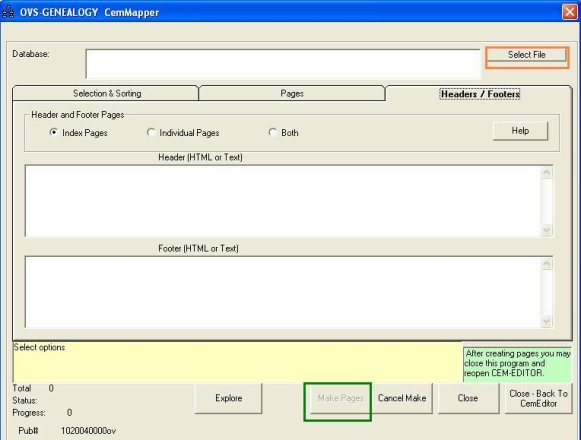
Include headers and footers in the index pages, individual pages or all pages/ HeaderEnter TEXT or HTML in this box. This will be displayed at the top of the page.To add a hyperlink: <A HREF="http://www.yoursite.com/">My web site</A> For a new line or paragraph use <P> or <BR> FooterEnter TEXT or HTML in this box. This will be displayed at the bottom of the page.SortSort alphabetically, by location of grave, or no sort.BUTTONSClick on the "Make Pages" button once you have finished and it will begin making your web pages. |