Genealogy Software and Cemetery Transcriptions Logo
OVS-Genealogy -- CemEditor Help
www.ovs-genealogy.com

Refresh your browser to insure up-to-date help files.

Categories

Home
Cemetery Surveys
Church Records
Transcription Software

HELP

Frequently Asked Questions
Download Updates
Installation Help
Getting Started
Convert Ver 1 to Ver 2
Step-by-step instructions
Publisher Registration
Excel Templates and Formulas
Edit & Add Data
Cemetery Info
Select Image File / Photos
Importing Data
Exporting Data
Renaming Photos
Encrypting Photos
Protecting Data Files
Publish-Tag-File
File Location
Publish to CD

Search

Surnames, cemeteries, etc

OTHER

General FAQs
Downloads
Contact Us
Links/Submit Link

Help

Version 2: Importing Data

Create a new database and CSV file

Importing the CSV Files

Using the CemEditor Program:

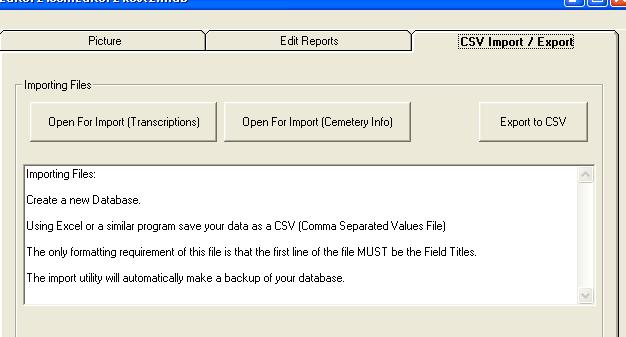
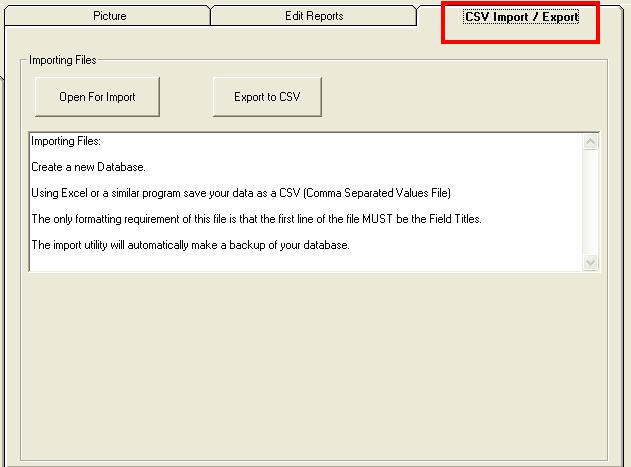
From the upper right had side of the CemEditor screen, click on the "CSV Import / Export" tab.

The image below is for the CemEditor Version 2.0.0005 and above. To see screenshot of previous version - click here. help-excel-csv-import-screenshot-version2_a (31K)

  • To import the transcriptions click on "Open For Import (Transcriptions)" button.
  • To import the transcriptions click on "Open For Import (Cemetery Info)" button.

Importing Transcriptions

Prepared for import

If you have prepared your CSV File already Click on the "Open For Import (Transcriptions)" button on the "Import/Export" tab of the CemEditor.

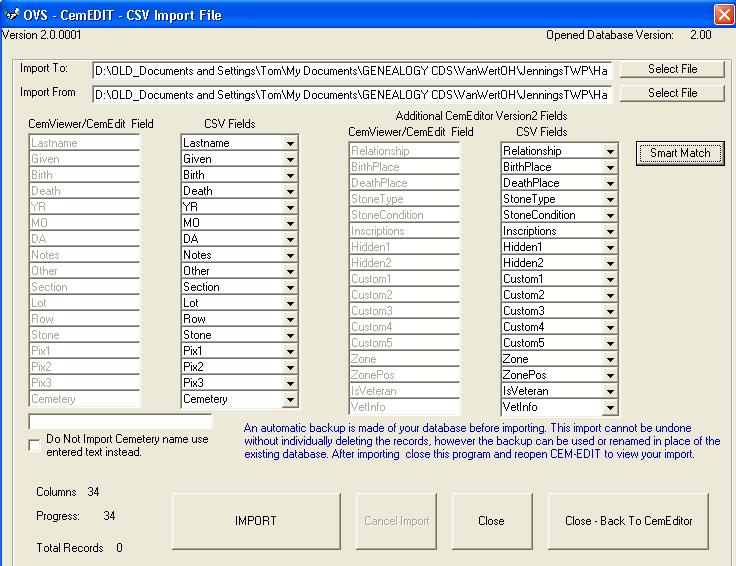
This screen will display: cem-edit-cemetery-import-screen-shot2-version2 (90K)

Importing

  1. Select the file you are importing to (the MDB file that you created with the CemEditor)
  2. Select / browse for the files you are importing from. (the CSV file that you edited with your spreadsheet program)
  3. Match the CSV Fields to the CemEditor fields you are importing. (right column to left column)
    • If using version 2 or above click on the "Smart Match" button. It will try to automatically match up the fields.
    • Review the matches made by the Smart Match feature and make any changes needed to the field matching.
  4. Click on "Import"

Notes

Take note that after importing into a new blank database the very first record of the database will be blank. This is normal and the blank record may be deleted in the CemEditor. All of your data will follow.

If you would like to see the data sorted in the CemEditor in the order that it was imported you will need to select the "No Sort" option in the CemEditor


Importing Cemetery Information Sheets

Prepared for import

If you have prepared your CSV File already Click on the "Open For Import (Cemetery Info)" button on the "Import/Export" tab of the CemEditor.

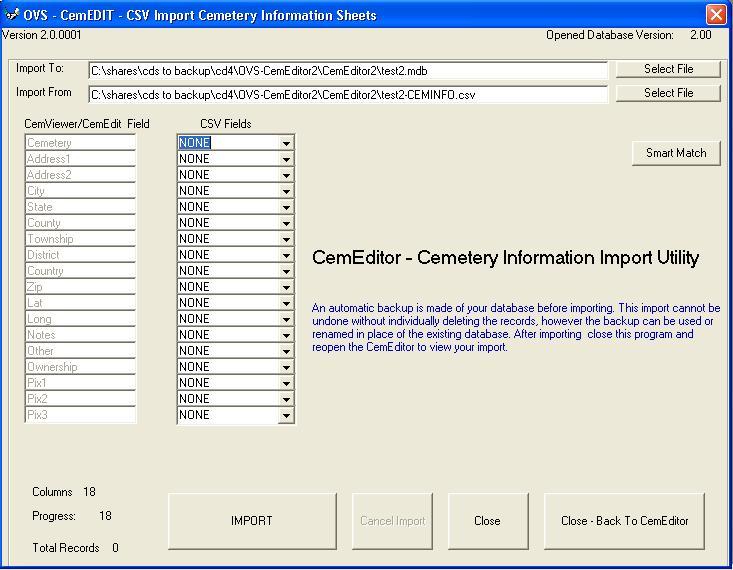
This screen will display: cem-edit-cemetery-info-import-screen-shot2-version2 (73K)

Importing

  1. Select the file you are importing to (the MDB file that you created with the CemEditor)
  2. Select / browse for the files you are importing from. (the CSV file that you edited with your spreadsheet program)
  3. Match the CSV Fields to the CemEditor fields you are importing. (right column to left column)
    • If using version 2 or above click on the "Smart Match" button. It will try to automatically match up the fields.
    • Review the matches made by the Smart Match feature and make any changes needed to the field matching.
  4. Click on "Import"

Notes

Take note that after importing into a new blank database the very first record of the database will be blank. This is normal and the blank record may be deleted in the CemEditor. All of your data will follow.

This imported information can be viewed in the CemEditor by double-clicking on the Cemetery Field.

(c) 2004-2008 OVS-GENEALOGY TAG Contact: support@ovs-genealogy.com

To receive replies make sure to allow email from this address in your email filter

www.ovs-genealogy.com