Help
Version 1.6.0031 and before.
For newer versions
click here.
You can view this page without screen shots by
clicking here.
Getting Started
See the example files on the CD.
To open the Editor click on
Start-Programs-CemEditor. If you are planning on
importing a file from Excel by using a Comma
Separated File (*.CSV) it will be explained
below.
The CemEditor will be unable to find a database
when it is opened for the very first time. (An
upgrade to the CemEditor will do this
automatically)
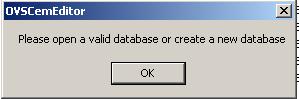
- A Message will display --"Please open a valid
database or create a new database". --> Click
on "OK".
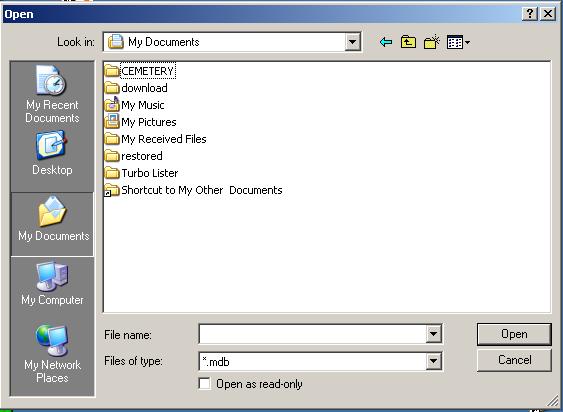
- The Open menu will display. -->Click on
"Cancel".
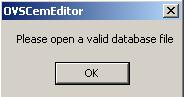
- The Editor will display "Please open a valid
database." --> Click on "OK".
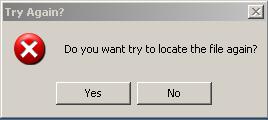
- The editor will then prompt "Do you want to
try to locate the file again? " --> Click on
"NO"
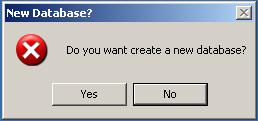
- It will than prompt "Do you want to create a
new database?" -->Click on "Yes"
- The create new database dialog will open.
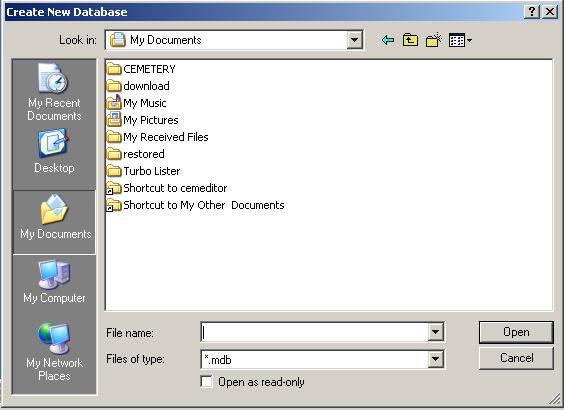
- Navigate to My Documents and click on the
"CEMETERY" folder you created earlier.
- Right Click to Create a New Folder
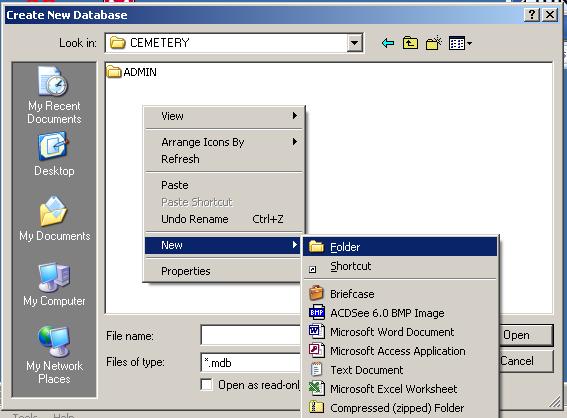
- Right click on the new folder to Name it
"NAME OF CEMETERY"

- Open by Double Clicking the "NAME OF
CEMETERY" Folder
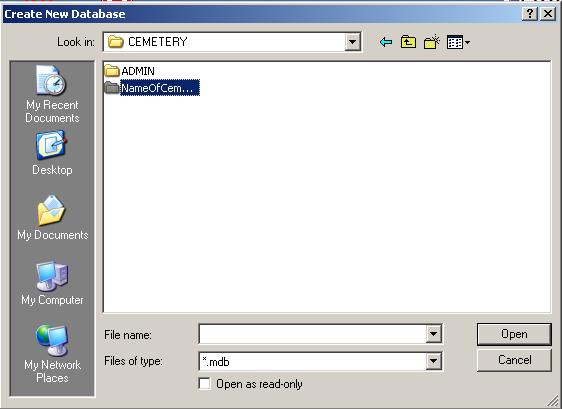
- Create one more folder name "ALSPWO"
(This is the folder your pictures are
placed in.)
Use the same method you used above to
create the "Name OF Cemetery"
Folder.
- Make sure your are viewing the "NAME
OF CEMETERY" folder
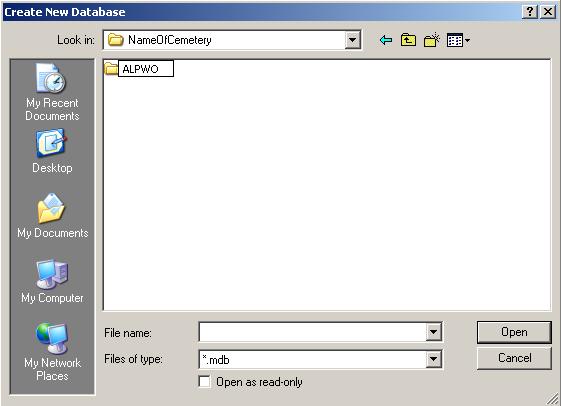
- Type in "NAME OF CEMETERY.MDB" and
click on "Open"
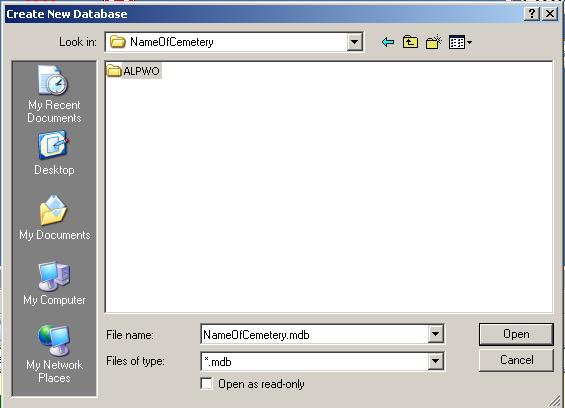
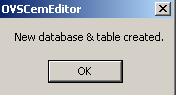
- You should New Database and Table
Created. Click on OK.
The program will open and you are now ready to
edit or import files.
Make sure to copy your pictures to the
"ALSPWO" Folder so the CemEditor and CemViewer
can locate them to display.
ONE MORE IMPORTANT STEP. ( You only need to do
this once)
How to load the Publisher Registration File
|